At bHosted, you can easily view the error log of your website. This is useful if you've made changes and want to check that everything works correctly, or if an error message suddenly appears on your website.
In this article, we briefly explain where you can find this log.
Logging in and opening DirectAdmin
Follow these steps to open DirectAdmin:
1. Log in to the control panel
Go to: mijn.bhosted.nl
Log in with your username and password.
2. Open DirectAdmin
- Click on DirectAdmin Paneel in the menu
- You will be automatically redirected to DirectAdmin

Viewing the error log
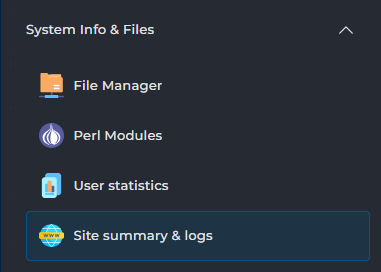
At the bottom left, under System Info & Files, choose Site Summary & Logs:
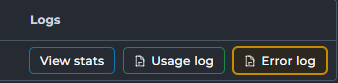
There, click on error log: behind the correct domain name:
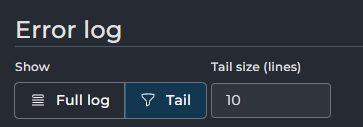
On the next screen, choose Full Log if you want to see everything, or Tail if you want to view a certain number of lines. Under Tail size (lines), enter how many lines you want to view:
Then click RELOAD LOG to reload the error log with the selected options:
Important to know
- The error log is an important tool for tracking down errors on your website, but it is mainly intended for technical use.
- Not every entry in the error log indicates a real problem; some are purely informational or caused by bots or external requests.
- Log files are rotated regularly, which means older entries may not always be immediately visible in DirectAdmin.
- Reading the error log can help you, for example, solve problems with WordPress, PHP errors, or pages that won't load.
- Not sure about an error message? Share the relevant line from the error log with our helpdesk so we can help you quickly.
- It may take a few minutes for the log to update after an error occurs.
Need help?
Can't figure it out? Please contact our helpdesk. We're happy to help you further.