With an out-of-office (vacation) message you automatically send a reply to incoming emails. You can easily set this up via the DirectAdmin control panel.
Logging in to bHosted
-
Go to https://mijn.bhosted.nl and log in with your username and password
-
Then click through to the DirectAdmin control panel
-
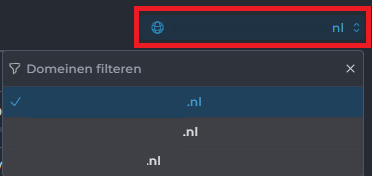
Do you have multiple domain names? Then first select the correct domain name in the top right of DirectAdmin
Setting up a vacation message
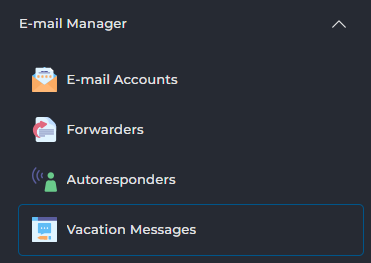
Then click in the menu on the right on:
-
E-mail manager
-
And then on Vacation Messages
-
On this page, click on the right on + Set Vacation Message:

Under Vacation Account, choose the email address for which you want to set up the message. To do this, click on your username (of the control panel), which opens a dropdown menu:

In this menu, select the email address for which you want to set up the message.
Set the vacation period
-
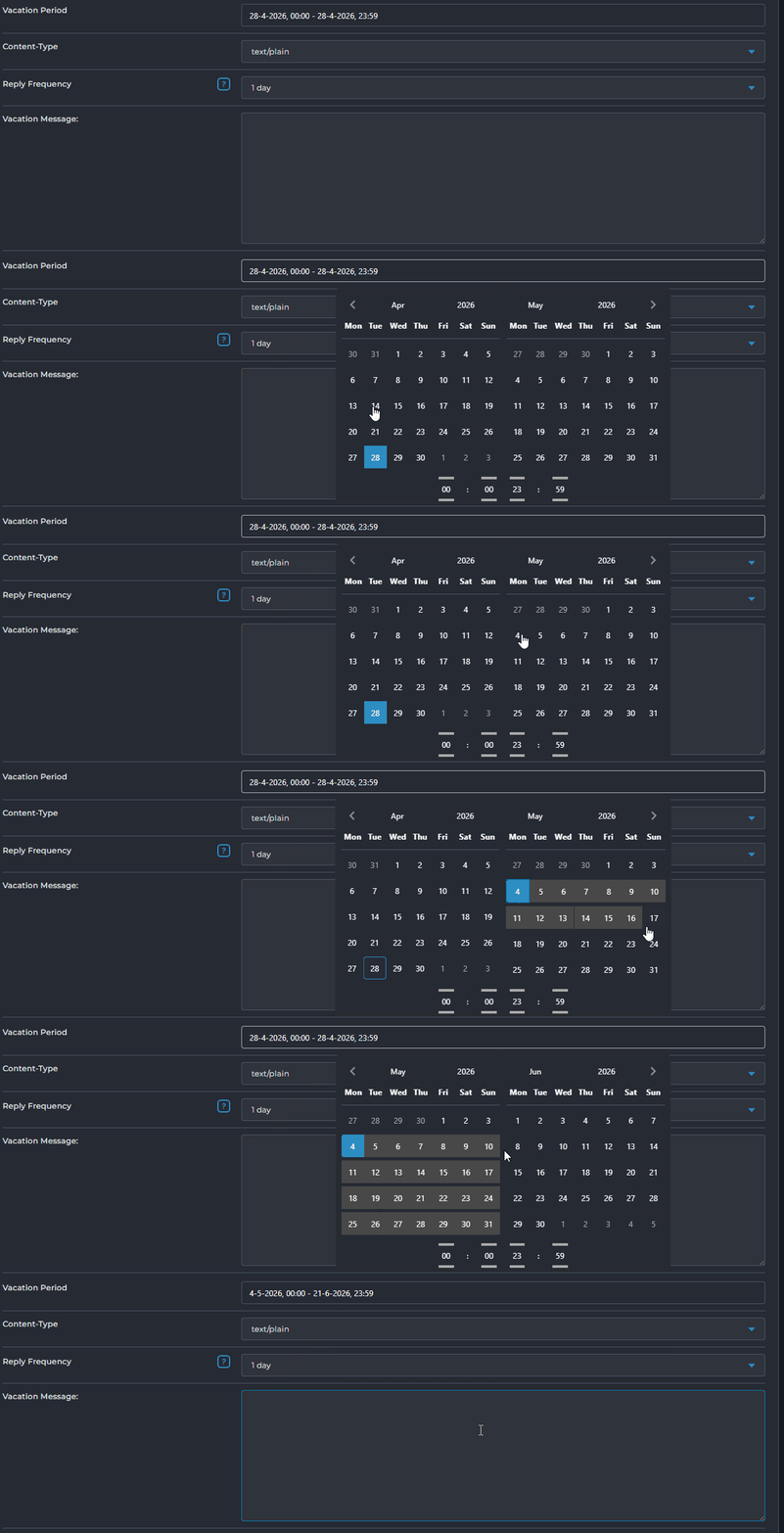
Under Vacation Period, click on a start date
-
Then click on an end date
This determines from when to when your message is active.
Step 7: Set the frequency
With Reply Frequency you indicate how often someone receives your automatic reply if they send multiple emails within a short period of time.
Step 8: Fill in the message
Under Vacation Message, enter the text you want to have sent automatically.
Step 9: Save
Click Create at the bottom to activate your message.
Result
Your out-of-office message is now active. Senders will automatically receive your message back during the set period.
Problems setting it up?
Having trouble setting it up? Feel free to contact the bHosted helpdesk. We're happy to help you further.