Redirects are now set up via DirectAdmin. This way you can be sure that visitors are correctly redirected in every browser.
Important: also activate an SSL certificate on the domain where you set up the redirect.
Read this article to see how to create an SSL certificate for your domain.
Logging in and opening DirectAdmin
Before you set up a redirect, first log in to your control panel and open DirectAdmin.
1. Log in to the control panel
Go to: mijn.bhosted.nl
Log in with your username and password.
2. Open DirectAdmin
- Click DirectAdmin Paneel in the menu
- You will automatically be redirected to DirectAdmin

Setting up a redirect
Follow these steps to set up a redirect:
1. Go to Site Redirection
- Click Account Manager on the left in DirectAdmin
- Then click Site Redirects
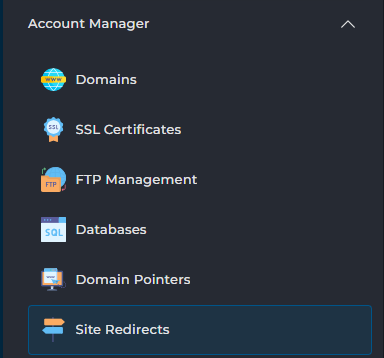
2. Create a new redirect
-
Click Create New Redirect in the top right corner

3. Fill in the details
- Local URL Path: leave this empty by default
- Redirect Type:
- Choose 301 for a permanent redirect
- Choose 302 for a temporary redirect
- Destination URL: enter the URL you want to redirect to
4. Save the redirect
- Click Create
Your redirect is active immediately.
Important to know
- Preferably use a 301 redirect if the redirection is permanent
- Make sure both domains have an SSL certificate (HTTPS), to prevent error messages
- Always test the redirect in your browser. It's best to use a private or incognito window for this, so no browser cache is loaded
Need help?
Can't figure it out? Please contact our helpdesk. We're happy to help.