You can easily set up in DirectAdmin to force https:// for your domain name.
Logging in and opening DirectAdmin
Follow these steps to open DirectAdmin:
1. Log in to the control panel
Go to: mijn.bhosted.nl
Log in with your username and password.
2. Open DirectAdmin
- Click DirectAdmin Panel in the menu
- You will be automatically redirected to DirectAdmin

Go to SSL Certificates in DirectAdmin
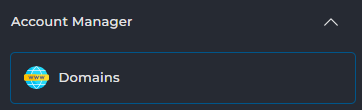
Click on Domains at the bottom left under account manager:
Then click on your domain name and, on the next page, select Force SSL with https redirect next to SSL. Then click MODIFY:

Important to know
- It may take a few minutes for the HTTPS redirect to become active everywhere after you enable it.
- Make sure your website already has a valid SSL certificate before forcing HTTPS. Without a valid certificate, your website may become unreachable.
- After forcing HTTPS, you may need to update internal links in your website from
http://tohttps://, to avoid mixed content warnings. - Are you using a CMS such as WordPress? Then also check the site URL settings and any plugins that handle redirects, to avoid conflicts.
- Are you using external services (such as APIs or embeds)? These may still work via HTTP. Check this to avoid error messages on your website.
- After setting this up, always test your website via both
http://andhttps://, to make sure the redirect works correctly.
Need help?
Can't figure it out? Please contact our helpdesk. We're happy to help you further.