Want to secure your account even further? With 2-factor authentication (2FA) you can easily add an extra layer of security in addition to your password.
Setting up 2FA step by step
1. Log in to your account
Go to https://mijn.bhosted.nl and log in with your username and password.
2. Open your account settings
Click on your name in the top right corner to open the menu.

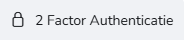
Then choose "2 Factor Authenticatie".
3. Enable 2FA
On the following page, click the button next to "Multifactor Authenticatie inschakelen".

4. Scan the QR code
Once you have enabled 2FA, a QR code will appear.
Scan it with an authenticator app, for example:
- Google Authenticator
- Microsoft Authenticator
- Authy
5. Confirm the link
Enter the code generated by your app to confirm the link. Once you've done this, 2FA will be enabled for your account.
Important to know
- From now on, you'll need a code in addition to your password to log in
- Store your backup codes in a safe place (if they are shown)
- Without access to your authenticator app, you may no longer be able to log in
Questions about 2FA?
Do you need help setting up 2FA? Feel free to contact the bHosted helpdesk. We're happy to help.