Want to change your password for the bHosted control panel? You can easily arrange this yourself via your account settings.
Step-by-step: changing your password
1. Log in to your account
Go to https://mijn.bhosted.nl and log in with your username and password.
2. Open your account settings
Click on your name in the top right corner to open the menu.
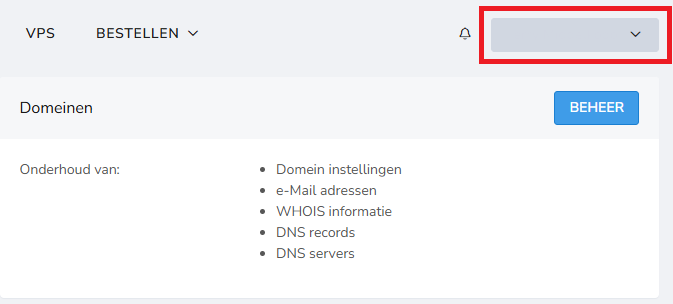
Then select "Password".
3. Enter your new password
Enter your new password in:
- New password
- Confirm new password
4. Save your change
Click Save to confirm your new password.
Important to know
- Your password must be at least 8 characters long
- Choose a strong password, for example with letters, numbers and special characters
- Use a unique password that you don't also use on other websites
- Preferably store your passwords safely in a password manager
Questions about your password?
Unable to change your password, or did you forget it? Feel free to contact the bHosted helpdesk. We're happy to help you further.