Have you registered your domain with bHosted and do you have at least the mail-only hosting package? Then you can have the bHosted mail servers function as a backup mail server or as a forwarding server. We call this functionality batch SMTP.
Backup mail server
With a backup mail server, your mail is normally delivered directly to your own mail server. That mail server is then directly reachable from the internet on port 25 (the standard port for mail servers). In this case, you create 2 MX records in the DNS:
- mail.<domainname>, priority 10
- mx.bhosted.nl, priority 20
In addition, you create 1 A record with your DNS provider for mail.<domainname>. This record points to the IP address at which your mail server is reachable from the internet.
Your mail will now normally be delivered directly to your own mail server. Is that server unreachable for any reason? Then bHosted will catch the mail via mx.bhosted.nl. We store the mail and check every half hour whether your main mail server is reachable again. As soon as it is, we deliver the stored mail after all.
Continue reading under the heading Batch SMTP to see what you need to set in the control panel for the forwarding destination of the stored mail.
Forwarding server
With a forwarding server, you set everything up slightly differently. You use this option, for example, if your internet provider blocks port 25. In that case, you make your mail server reachable on a different port, such as port 2525.
For this setup, you only need 1 MX record:
- mx.bhosted.nl, priority 10
All email for your domain therefore arrives at bHosted first. Our mail servers then try to forward the mail to the mail server you have set. Is that server reachable? Then the forwarding happens almost instantly. If not, we deliver the mail as soon as the server is reachable again.
Under the heading Batch SMTP you can read how to set where the mail arriving at the bHosted mail servers should go.
Batch SMTP
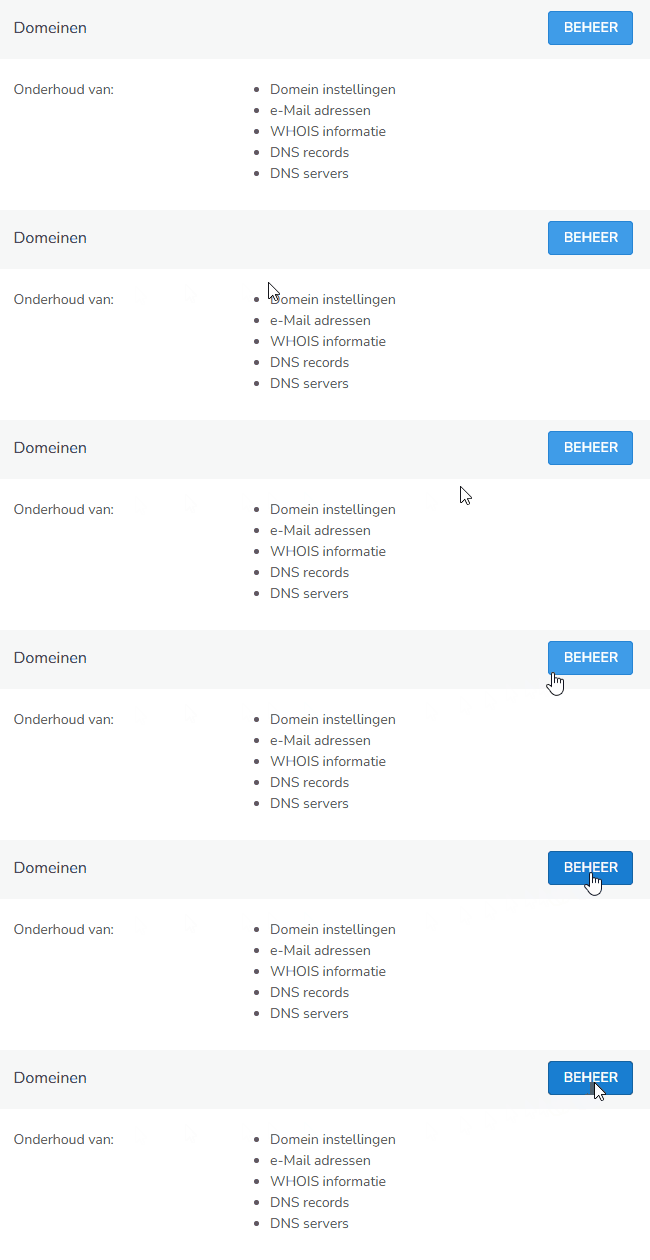
Are you using a backup mail server or a forwarding server? Then you set in the bHosted control panel where the incoming emails should go. Log in to mijn.bhosted.nl and click on Manage next to Domains:
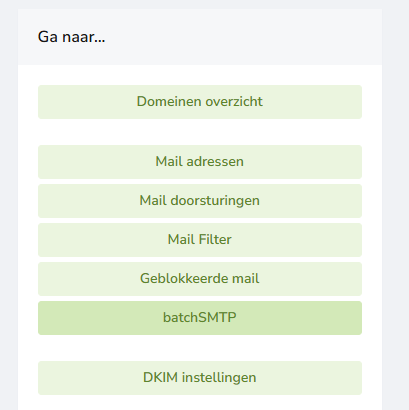
Then click on the domain name for which you want to set up Batch SMTP. On the next page, under Go to..., choose batchSMTP:
In the screen that opens, fill in the following fields:
- Mail server Do you have a backup mail server? Then enter the name of your 1st MX record. Do you have a forwarding server? Then enter the name or IP address of your actual mail server.
- Port By default, enter port 25 here. For a forwarding server, enter the port number on which your server is reachable from the internet, for example port 2525.
- Check SMTP server This checks whether the SSL certificate on this server is valid.
Do you have any further questions about this? Please feel free to contact the bHosted helpdesk.