Want to install WordPress on an empty domain name? You can easily set this up via the bHosted control panel.
Installing WordPress via DirectAdmin
- Go to https://mijn.bhosted.nl
- Log in with your username and password
- Click the Directadmin Paneel button in the main menu
Once you're in DirectAdmin, continue as follows:
-
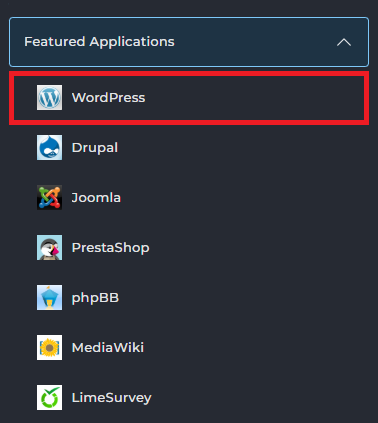
Under Featured Applications, click WordPress
-
You will now be taken to Installatron
-
Click Install this application in the top right corner
Installation settings
On the next page, you configure the WordPress installation:
- Domain Select the domain on which you want to install WordPress.
- Directory Leave this field empty if you want to install WordPress on the main domain.
- Administrator Username & Password Enter a username and password here. You will need these details later to log in to WordPress.
- Website Title Enter the title of the installation here. You will later see this title as the name of the installation.
You can leave the other options as they are. Then click Install at the bottom to start the installation:

Logging in after installation
After installation, you log in to WordPress via:
https://jouwdomein.nl/wp-admin
Use the username and password you set during installation.
You can also log in directly via DirectAdmin. You can read how this works in this article.
Done!
After logging in, you'll land on the WordPress dashboard where you can start building your website right away.
Can't figure it out? Feel free to contact the bHosted helpdesk.