We recently helped a customer set up DynDNS on his Teltonika 4G router. This makes his network accessible via a 4G connection. Handy if, for example, you want to make security cameras accessible on a construction site, or during an event where no fixed internet connection is available.
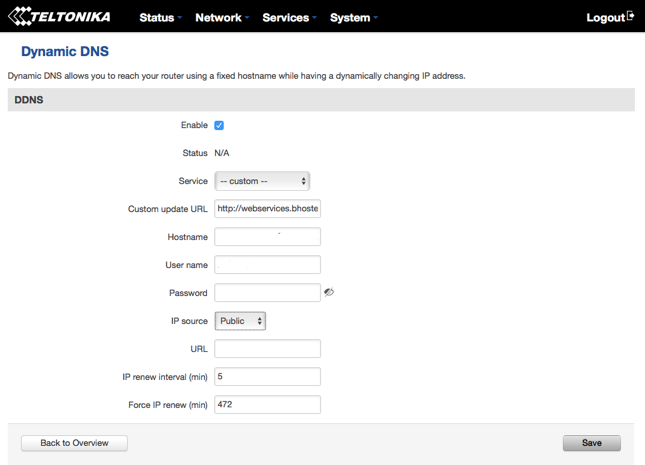
Filling in the DynDNS screen on the Teltonika is easy. Just make sure to pay close attention to the URL you need to use. For the Teltonika, that is:
https://webservices.bhosted.nl/dyndns?user=[USERNAME]&password=[PASSWORD]&host=[DOMAIN]&ip=[IP]
Just like with any other device on which you set up DynDNS, you need to fill in the DynDNS token. Read the explanation on how to obtain the token.
This guide assumes that the IP address of your Teltonika 4G router is directly accessible from the internet. IP addresses starting with 10., for example, are not. Not sure? Then contact your mobile internet provider first and ask whether the IP address can be made directly accessible from the internet.