With this guide you can easily take a website at bHosted temporarily offline by renaming the public_html folder. Your website files remain intact, so you can simply undo the change later.
Step 1: Log in to DirectAdmin
- Go to https://mijn.bhosted.nl and log in with your username and password.
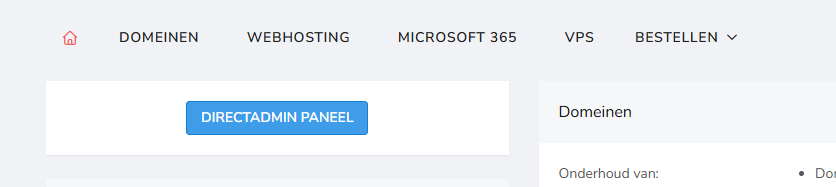
- Click on the DirectAdmin Panel in the top left corner.
Step 2: Open the correct folder
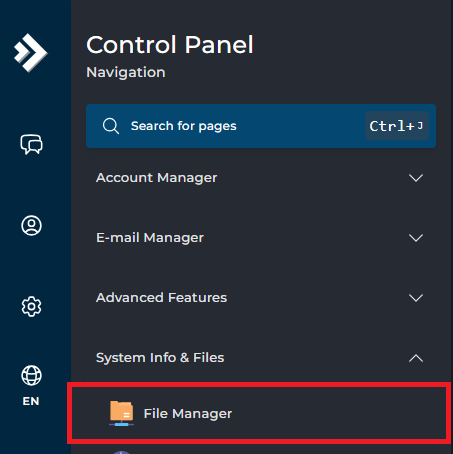
- Open the root folder of your domain or hosting account.
- Look for the
public_htmlfolder. - Check that this is the folder containing your website's files.
Note: do you have multiple domains or subdomains? Then they may have their own document root. In that case, adjust the correct folder for the relevant domain.
Step 3: Rename the folder
- Right-click the
public_htmlfolder and choose Rename. - Enter a new name, for example:
public_html_offline
Then confirm the change by clicking rename.
Your website files are not deleted in this process, you only change the name of the folder.
Note: rename the folder of the relevant domain, usually domains/yourdomain.com/public_html, and not just the general public_html shortcut in the root folder of your account. DirectAdmin usually uses a separate document root per domain.
Step 4: Check whether the website is offline
- Open the website in a new browser window.
- Check both the HTTP and HTTPS versions.
- Is the website still accessible? Then check whether the domain uses a different document root or whether a separate folder is set for HTTPS.
Step 5: Putting the website back online
Want to restore the website? This is easily done:
- Go back to DirectAdmin → File Manager.
- Open the folder where you made the change.
- Rename
public_html_offlineback topublic_html. - Open the website again and check that it works again.