With a Let's Encrypt SSL certificate, your website is securely accessible via https://. Below we explain step by step how to set this up.
Logging in and opening DirectAdmin
Before you can create an SSL certificate, first log in to your control panel and open DirectAdmin.
Step 1. Log in to the control panel
Go to: https://mijn.bhosted.nl
Log in with your username and password.
Step 2. Open DirectAdmin
- Click on DirectAdmin Paneel in the menu
- You will automatically be redirected to DirectAdmin

Step 3: Go to the SSL settings
Click on Account Manager on the left in DirectAdmin, then on SSL Certificates.
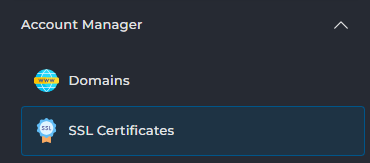
- Then select ACME settings at the top

-
Check Enable ACME

-
Uncheck prefer wildcard certificates

-
Click Save at the bottom
Your certificate will now be requested automatically and activated as soon as possible!
SSL disabled?
- Is SSL still disabled? Then click on Domains under Account Manager:
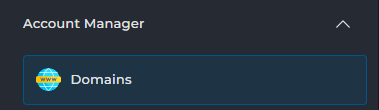
On this page, click on the domain name for which you want to enable SSL on the right, and check Secure SSL on this page:

Then click Modify at the bottom. SSL is now enabled for this domain name. You can now perform step 3 to generate a certificate for it.
Forcing HTTPS (optional)
Do you want your website to always load via https://?
- Go to Domains under Account Manager again
- Check Force SSL with https redirect at the bottom
- Click Modify

Extra tips
- Make sure your domain name points correctly to your hosting (DNS settings), otherwise the certificate cannot be issued.
- Preferably always use both the www and non-www version of your domain in the selection.
- Your Let's Encrypt certificate will be renewed automatically. You don't need to do anything for this yourself.
- Doesn't https:// work right away? Wait a few minutes and clear your browser cache if necessary.
You can also use an incognito or private window in your browser, so that the browser cache is not loaded.
Can't figure it out?
If you can't manage to activate an SSL certificate, or run into any issues, feel free to contact bHosted's helpdesk. We're happy to help.