With the Backupmanager you can easily restore files, folders and databases from an earlier backup of your hosting package.
In this article, we'll show you how to do this.
Logging in to mijn.bHosted.nl
First log in to mijn.bHosted.nl with your account details.
Are you logged in? Then click the Manage button on the right next to Webhosting.
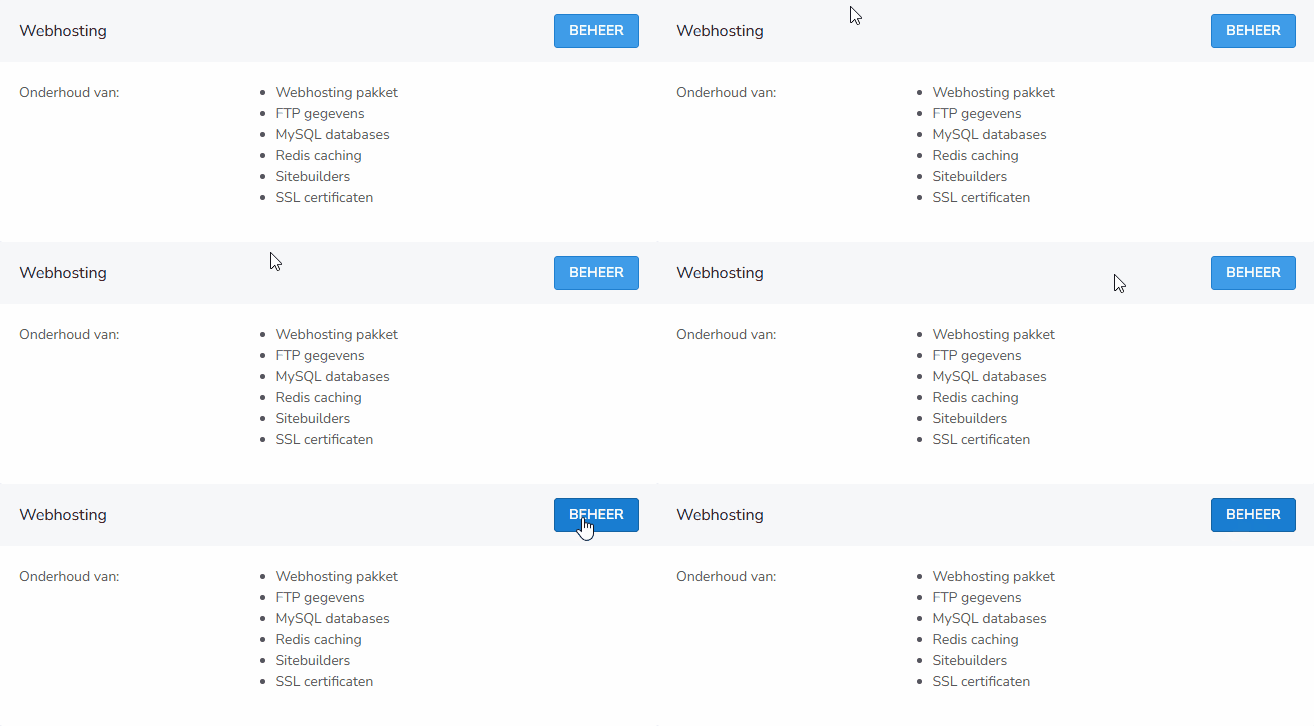
Opening the Backupmanager
On the right side of the page, under Relevant actions, you'll find the option Naar backup server. Click this to open the Backupmanager:

Logging in to the Backupmanager
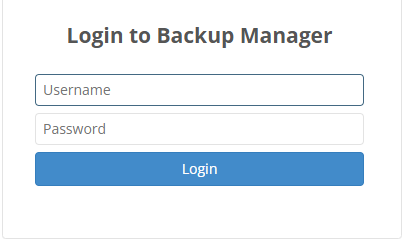
On the next page, log in to the Backupmanager with the same username and password you use to log in to the control panel:
Once logged in, you'll see an overview of all available backups, sorted by date. Behind each backup date are a few icons:

- First icon: restore files and folders.
- Second icon: restore databases.
- Third icon: download files and folders.
Restoring files or folders
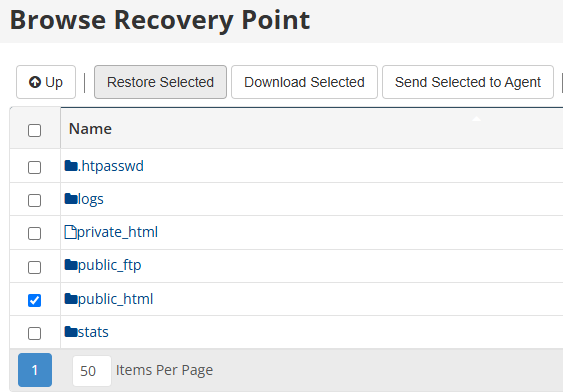
Click the first icon next to the desired backup date. You will now see the folder structure of the backup.
Do you want to restore the website files? This is usually the case. Then navigate to:
home → domains → your domain name
Check the public_html folder and click Restore Selected at the top to restore the folder.
Restoring a database
Click the second icon next to the desired backup date.
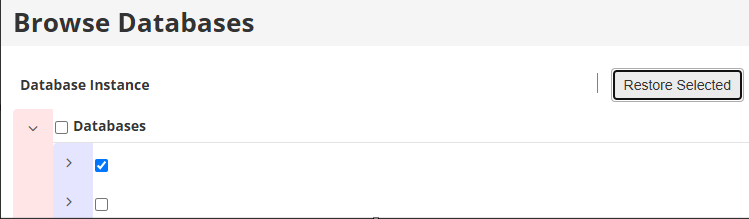
Then click Databases and wait a few seconds for them to load. After that, you'll see all databases included in the selected backup.
Check the database you want to restore and click Restore Selected at the top:
On the next screen, select 1 for Innodb Force Recovery:
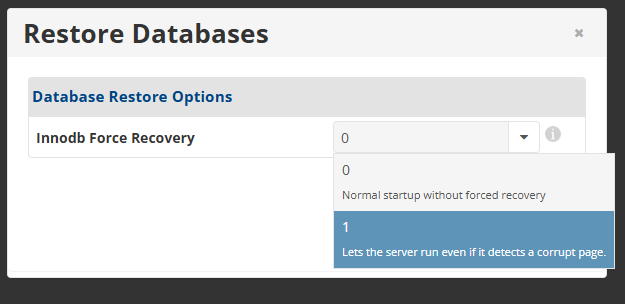
Then click through to restore to restore the database:

Downloading files
Do you want to download a copy of a backup first without restoring it right away? Then click the third icon next to the desired backup date. This way you download files and folders from the backup to your own computer.
Please note: this is only the website data, without the database. A database can optionally be exported via phpMyAdmin in DirectAdmin.
Good to know
- You log in to the Backupmanager with the same login details as for mijn.bHosted.nl.
- You can restore both individual files and folders as well as complete databases.
- In most cases, you only need to restore the public_html folder of the relevant domain.
- Always check whether you've selected the correct backup date before performing a restore action.
- Please note: when you restore a backup, you overwrite the current data with the contents of the selected backup. Do you want to keep the current data? Then make a recent copy of it first.
Need help?
Are you having trouble restoring a backup or running into problems? Feel free to contact the bHosted helpdesk. We'll be happy to help you further.